cat outlook-removes-extra-line-breaks-from-plain-text-emails-how-to-stop-it.md
Outlook removes "extra line breaks" from plain text emails: How to stop it

"We removed extra line breaks from this message."
Well, how helpful of you. Now the email from my crontab script is all in one line.
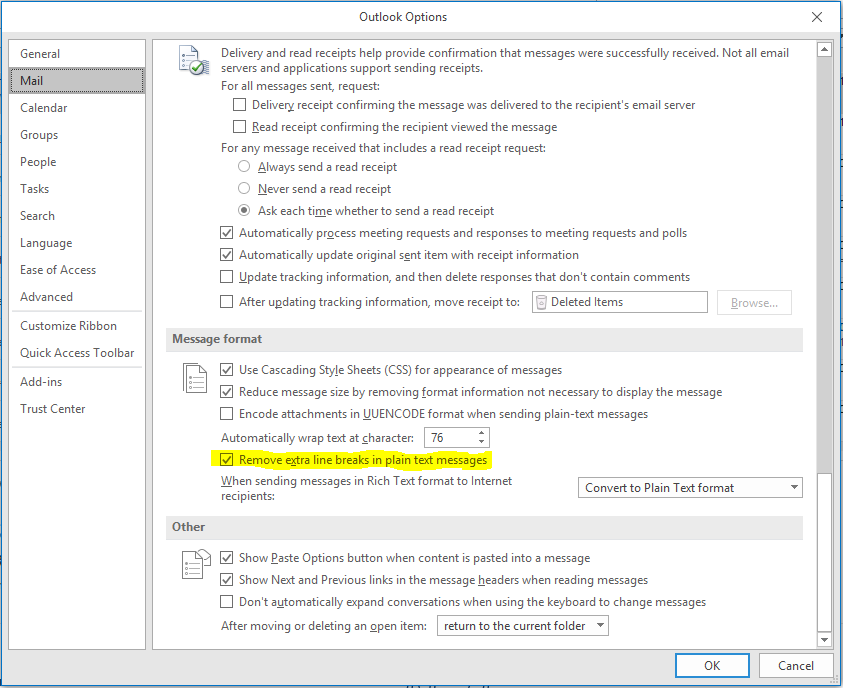
You can disable this "helpful functionality" permanently in Outlook by doing this:
- Open Outlook
- On the File tab, select Options
- In the Options window, select Mail
- In the Message format section, clear the "Remove extra line breaks in plain text messages" check box
- Click OK
That's all fine and dandy for you, but what about your colleagues? Getting them all to do this would be a pain. Well, Outlook has this curious idea that lines ending with three or more spaces should not have this helpful behaviour applied to them. Thus, the easy solution to the problem is to add three spaces at the end of every. single. line.
It's not as hard as it may sound. awk will do it for us.
awk '{ print $0" " }'This reads every single line, and re-prints it with three spaces at the end. Outlook is now happy.
You can easily pipe stuff into it for your crontab entries. The below is a useless example:
find /etc -name "*.conf" | awk '{ print $0" " }'You can also make your script print like this internally, which in Bash is done by redirecting stdout and stderr through an awk process, as such:
#!/usr/bin/env bash
exec > >(awk '{ print $0"   " }') 2>&1
echo "This goes to stdout"
echo "This goes to stderr" >&2
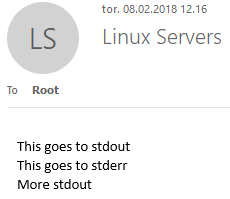
echo "More stdout"After the exec line, anything printed by your script will be sent through awk and on through stdout. Outlook will no longer try to help.
Comments